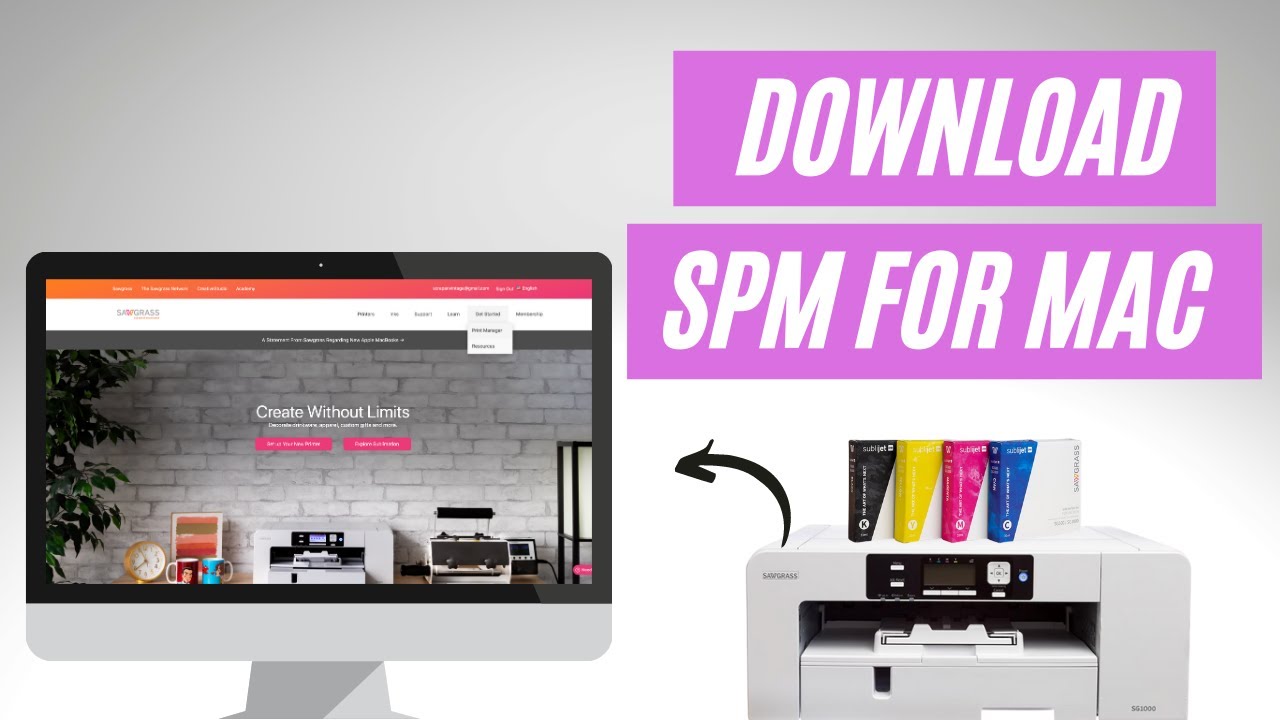
The world of sublimation printing has revolutionized how businesses create custom products, from personalized t-shirts to vibrant mugs and promotional materials. At the heart of this technology lies the critical software component that bridges your Mac computer with your Sawgrass printer: the printer driver. Understanding how to properly install, configure, and maintain your sawgrass printer driver macOS setup can mean the difference between smooth production workflows and frustrating technical roadblocks that halt your business operations.
For Mac users working with Sawgrass printers like the SG500, SG1000, or the popular Virtuoso series, the driver installation process differs significantly from Windows systems. macOS has specific security protocols, file system requirements, and permission settings that can complicate what should be a straightforward installation. Many users encounter challenges ranging from compatibility issues with newer macOS versions to driver recognition problems that prevent their expensive sublimation equipment from functioning properly. This comprehensive resource addresses every aspect of working with Sawgrass printer drivers on macOS, providing you with the deep technical knowledge needed to overcome common obstacles and optimize your printing setup for professional results.
Understanding Sawgrass Printer Drivers and macOS Compatibility
Sawgrass printer drivers serve as the essential communication layer between your Mac operating system and your sublimation printer hardware. These specialized software packages translate the digital designs created in programs like Adobe Photoshop or CorelDRAW into printer-specific commands that control ink distribution, color management, and print quality settings. Without a properly functioning sawgrass printer driver for macOS, your computer simply cannot recognize or communicate with your printer, rendering your investment in sublimation equipment useless.
The relationship between macOS versions and Sawgrass printer driver compatibility has evolved significantly over the past decade. Apple’s transition from Intel processors to Apple Silicon (M1, M2, M3 chips) introduced new architectural requirements that affected driver functionality. Sawgrass macOS printer driver packages must now support both Intel-based Macs and Apple Silicon systems, often requiring Rosetta 2 translation layers for older driver versions. Additionally, Apple’s stringent security measures introduced in macOS Catalina (10.15) and later versions require all drivers to be notarized and signed by verified developers, adding another layer of complexity to the installation process.
Sawgrass has developed different driver versions optimized for various macOS releases. The CreativeStudio software package, which includes the necessary printer drivers, must match your specific operating system version to function correctly. Users running macOS Monterey (12.x), Ventura (13.x), or Sonoma (14.x) need to ensure they download the appropriate driver version from Sawgrass’s official support portal. Installing an incompatible driver version can result in printing errors, color management problems, or complete system failure to recognize the connected printer. The company regularly releases driver updates to address bugs, improve compatibility with new macOS versions, and enhance printing performance for their sublimation printer lineup.
Step-by-Step Installation Process for Sawgrass Printer Drivers on Mac
Installing your sawgrass printer driver on macOS requires careful attention to several preliminary steps before launching the actual installation package. First, ensure your Mac meets the minimum system requirements specified by Sawgrass for your particular printer model. This typically includes having at least macOS 10.13 (High Sierra) or later, though newer printers may require more recent operating system versions. You should also verify that you have administrative privileges on your Mac, as driver installation requires system-level access that standard user accounts may not possess. Before beginning the installation, completely shut down any graphics programs, print management software, or other applications that might interfere with the driver setup process.
Begin by navigating to the official Sawgrass support website to download the latest CreativeStudio software package compatible with your macOS version and printer model. The download file typically arrives as a DMG (disk image) file that contains the installer application. Double-click the downloaded DMG file to mount it, which will display the installer icon on your desktop or in Finder. Before proceeding, disconnect your Sawgrass printer from your Mac if it’s currently connected via USB cable, as the installation wizard will prompt you to connect it at the appropriate moment in the setup sequence. This disconnection prevents potential conflicts where the operating system attempts to install generic drivers before the Sawgrass-specific drivers are properly configured.
Once you’ve mounted the DMG file, double-click the installer application to launch the setup wizard. macOS will display a security warning asking if you want to open the application downloaded from the internet. Click “Open” to proceed, which may require entering your administrator password to authorize the installation. The CreativeStudio installer will guide you through several screens, including license agreement acceptance and installation location selection. Most users should choose the default installation location, which places the driver files in the appropriate system directories.
During installation, you may see additional security prompts related to system extensions, particularly on newer macOS versions. These prompts are normal and necessary for the driver to function correctly—always click “Allow” or “OK” when asked to approve Sawgrass system extensions.
After the installation completes, the wizard will typically prompt you to connect your Sawgrass printer to your Mac using the provided USB cable. Ensure you’re using the original cable supplied with your printer, as third-party cables may lack proper data transmission capabilities for sublimation printing. Once connected and powered on, macOS should automatically detect the printer and complete the driver association process. You can verify successful installation by opening System Preferences (or System Settings on macOS Ventura and later), navigating to “Printers & Scanners,” and confirming that your Sawgrass printer appears in the device list with its correct model name rather than a generic identifier.
Troubleshooting Common macOS Driver Installation Issues
Despite following proper installation procedures, many users encounter frustrating obstacles when setting up their sawgrass printer driver macOS configuration. One of the most prevalent issues involves the Mac failing to recognize the connected Sawgrass printer after driver installation. This problem often stems from security settings introduced in recent macOS versions that block unsigned or improperly notarized kernel extensions. To resolve this, navigate to System Preferences > Security & Privacy > General tab, where you should see a message about blocked system software from Sawgrass. Click the “Allow” button next to this message, which may require unlocking the preference pane with your administrator password first. After allowing the extension, restart your Mac completely before attempting to connect your printer again.
Another common challenge involves printer driver version conflicts, particularly when upgrading from an older Sawgrass printer model to a newer one while maintaining the same Mac computer. Previous driver installations may leave residual files that conflict with new driver packages, causing erratic behavior or preventing proper printer recognition.
The solution requires completely removing all traces of the old driver before installing the new version. Start by deleting the printer from System Preferences > Printers & Scanners, then navigate to Library folders (both in your user directory and the root system directory) to manually remove Sawgrass-related files. Key locations include /Library/Printers/, /Library/Application Support/, and ~/Library/Preferences/. Search for files and folders containing “Sawgrass” or “CreativeStudio” in their names and move them to the trash before emptying it and restarting your Mac.
USB connectivity problems represent another frequent source of frustration when working with macOS sawgrass printer drivers. Modern Macs, particularly MacBook models with limited USB-C ports, often require users to employ USB hubs or adapters to connect their Sawgrass printers. However, not all hubs provide adequate power delivery or data bandwidth for sublimation printers, which require stable connections for large file transfers during printing. If your printer intermittently disconnects or fails to respond during print jobs, try connecting it directly to your Mac without any intermediary devices. For Macs with only USB-C ports, invest in a high-quality, powered USB-C to USB-A adapter specifically rated for printer connections rather than budget alternatives that may cause communication failures.
Optimizing Color Management and Print Quality Settings
Achieving professional-quality sublimation prints through your sawgrass printer driver for macOS requires understanding the intricate color management system that governs how colors translate from screen to substrate. The CreativeStudio software includes Sawgrass’s proprietary color management profiles (ICC profiles) specifically calibrated for their sublimation inks and various transfer paper types. These profiles ensure that the vibrant designs you create on your Mac’s display translate accurately to physical prints, compensating for the unique characteristics of sublimation ink chemistry and heat transfer processes. Without proper profile configuration, your prints may exhibit color shifts, reduced vibrancy, or inconsistent results across different product types.
To optimize your color management settings, launch the CreativeStudio application installed with your sawgrass macOS printer driver package. Navigate to the Preferences or Settings menu, where you’ll find color management options that allow you to select specific ICC profiles for your intended substrate. Sawgrass provides different profiles for rigid substrates (like ceramic mugs and aluminum), soft substrates (polyester fabrics and garments), and various paper types. Selecting the incorrect profile for your application can result in washed-out colors, over-saturation, or poor detail reproduction. Most professional sublimation businesses maintain multiple saved preset configurations within CreativeStudio, each optimized for their most commonly printed product categories, allowing quick switching between different substrate requirements without manual reconfiguration.
Print resolution settings dramatically impact both quality and production speed when working with Sawgrass sublimation printers on Mac systems. The driver offers multiple quality modes ranging from draft (360 dpi) to high quality (1200 dpi or higher, depending on your printer model). While maximum quality settings produce the sharpest detail and smoothest gradients, they also significantly increase print times and ink consumption.
For production environments, finding the optimal balance between quality and efficiency is crucial. Standard quality mode (720 dpi) provides excellent results for most applications while maintaining reasonable print speeds. Reserve high-quality modes for premium products or items with fine detail requirements, and use draft mode only for test prints or design proofing where final color accuracy isn’t critical.
Advanced Configuration for Professional Sublimation Workflows
Professional sublimation businesses using sawgrass printer drivers on macOS can implement advanced workflow optimizations that dramatically improve productivity and consistency. The CreativeStudio software includes automated features like ink management tools that track consumption patterns, predict when cartridge replacements are needed, and generate detailed usage reports for job costing purposes. These analytics prove invaluable for businesses managing multiple printer installations or tracking production costs across different product lines. By monitoring ink usage through the driver software, you can identify which designs or products consume excessive ink and adjust your pricing or design specifications accordingly to maintain healthy profit margins.
Batch printing capabilities within the sawgrass macOS driver environment enable efficient processing of multiple orders without constant manual intervention. The software allows you to create print queues containing multiple designs with specific quantity requirements for each, automatically sequencing the jobs for optimal printer utilization. This feature becomes particularly valuable during peak production periods or when fulfilling large corporate orders. You can prepare an entire day’s production queue in advance, set the printer to process jobs sequentially, and focus on heat pressing completed transfers rather than constantly returning to your computer to initiate individual print jobs. The system also supports job priority settings, allowing rush orders to jump ahead in the queue without disrupting the overall production schedule.
Custom paper size configuration represents another powerful feature that many Mac users overlook when working with their Sawgrass printer drivers. While the software includes presets for standard sublimation paper dimensions, custom sizes allow you to minimize paper waste when printing unusual product shapes or multiple small designs on a single sheet. Access the custom paper size menu through the print dialog’s paper size dropdown, selecting “Manage Custom Sizes” to create new dimensions tailored to your specific needs. Document these custom configurations carefully, as they can significantly reduce material costs over time.
A business printing frequent small items like ornaments or keychains might create custom sizes that fit four or six designs per sheet with minimal border waste, dramatically improving material efficiency compared to using standard letter or tabloid sizes.
Maintaining Peak Performance Through Regular Driver Updates
Keeping your sawgrass printer driver macOS installation current with the latest software releases is essential for maintaining optimal printer performance and compatibility with evolving operating system requirements. Sawgrass regularly releases driver updates that address bugs discovered in previous versions, improve compatibility with new macOS releases, enhance color accuracy through refined ICC profiles, and occasionally add new features to the CreativeStudio software package. Neglecting these updates can result in gradually degrading print quality, compatibility issues when upgrading your Mac’s operating system, or missing out on productivity improvements that could streamline your workflow significantly.
The update process for Sawgrass printer drivers on Mac typically involves downloading a new installer package from the support website and running through the installation procedure similar to the initial setup. However, you should not simply install the new version over the existing installation without preparation. Best practices dictate creating a complete backup of your current CreativeStudio settings and custom configurations before proceeding with any driver update.
The CreativeStudio software usually provides an export function for settings, which creates a file containing your custom paper sizes, saved color profiles, printer preferences, and other personalized configurations. Store this backup file in a safe location, preferably in cloud storage or an external drive, so you can quickly restore your settings if the update process encounters problems or resets your preferences to defaults.
After installing a driver update, dedicate time to thorough testing before resuming production operations. Print several test patterns using different quality settings and color profiles to verify that the update hasn’t introduced unexpected changes to your output. Compare these test prints to samples created before the update, examining color accuracy, print resolution, and overall quality consistency. This validation step is particularly important for businesses with strict quality control requirements or those fulfilling ongoing contracts where color matching must remain consistent across multiple production runs. If you discover problems after updating, Sawgrass support can typically provide links to previous driver versions, allowing you to roll back to a known-stable configuration while they address any issues in subsequent releases.
Network Printing Solutions for Multi-Mac Environments
Businesses operating multiple Mac workstations often need to share access to a single Sawgrass sublimation printer without constantly moving the USB connection between computers. While Sawgrass printers are primarily designed for direct USB connection, creative solutions exist for implementing shared printing capabilities in multi-Mac environments. One approach involves designating a dedicated Mac as a print server, leaving the Sawgrass printer permanently connected to this computer while other Macs submit print jobs over your local network. The sawgrass printer driver for macOS supports this configuration through macOS’s built-in printer sharing features, though setup requires careful attention to network permissions and driver installation across all participating computers.
To configure printer sharing, start by installing the complete sawgrass macOS printer driver package on the Mac that will serve as your print server. This computer must have the CreativeStudio software fully installed and the printer successfully configured for local printing before attempting to share it on the network. Once confirmed working, navigate to System Preferences > Sharing (or System Settings > General > Sharing on newer macOS versions) and enable the “Printer Sharing” checkbox.
Select your Sawgrass printer from the list of available printers to share, then configure access permissions to control which users or computers can send jobs to the printer. For small business environments, enabling “Everyone” access simplifies configuration, while larger operations may prefer restricting access to specific user accounts for security and accountability purposes.
On client Macs that will submit jobs to the shared Sawgrass printer, the setup process differs slightly from standard local installation. These computers still require the Sawgrass driver software installed locally, as the driver components handle color management and file preparation before sending jobs to the print server.
However, instead of directly connecting to a USB printer, these systems add the shared network printer through System Preferences > Printers & Scanners. Click the “+” button to add a printer, and the shared Sawgrass printer should appear in the list of available network devices. Select it and ensure macOS uses the correct Sawgrass driver rather than a generic AirPrint driver, which would bypass the specialized color management and quality controls essential for professional sublimation printing. After adding the network printer, test thoroughly from each workstation to verify that color profiles, quality settings, and other driver features function identically to direct-connected printing.
Integration with Popular Design Software on macOS
Seamless integration between your sawgrass printer driver macOS setup and professional design software is crucial for efficient sublimation workflows. Adobe Creative Cloud applications like Photoshop, Illustrator, and InDesign represent the industry standard for sublimation design work, and proper driver configuration ensures these programs communicate effectively with your Sawgrass printer. Within Photoshop, color management settings must align with your Sawgrass ICC profiles to maintain color accuracy from design through printing. Navigate to Edit > Color Settings and configure your RGB working space to match the color space expected by your sublimation workflow, typically Adobe RGB (1998) rather than the narrower sRGB common for web graphics.
When printing from Adobe applications with your sawgrass macOS driver, accessing the full range of driver features requires clicking through the standard macOS print dialog to reach Sawgrass-specific options. In Photoshop’s Print dialog, select your Sawgrass printer, then click “Print Settings” to access the CreativeStudio driver interface where you can select quality modes, color profiles, and other sublimation-specific parameters. Crucially, you must configure Photoshop to let the printer manage colors rather than applying its own color management, preventing double-profiling that results in muddy, inaccurate color reproduction. Set the “Color Handling” option to “Printer Manages Colors” and ensure “Rendering Intent” is set to “Perceptual” or “Relative Colorimetric” depending on whether you prioritize overall color harmony or specific color accuracy respectively.
CorelDRAW represents another popular design platform among sublimation professionals, particularly for businesses creating text-heavy designs, signage, or vector-based artwork. The sawgrass printer driver for macOS integrates with CorelDRAW through similar print dialog mechanisms, though Corel’s color management system operates somewhat differently from Adobe’s approach. Within CorelDRAW’s color settings, enable color management and select the appropriate Sawgrass ICC profile for your intended substrate as the output profile.
Like Photoshop, disable application-level color management during printing to prevent conflicts with the driver’s own color handling. CorelDRAW’s print preview feature proves particularly valuable when working with sublimation, as it shows exactly how your design will be positioned on the transfer paper, allowing you to catch orientation errors or sizing mistakes before wasting materials on incorrect prints.
Cost Analysis and Return on Investment Considerations
Understanding the total cost of ownership for your sawgrass printer driver macOS setup extends beyond the initial hardware and software investment. Sublimation ink represents the primary ongoing expense for most operations, with Sawgrass’s SubliJet-UHD ink cartridges priced at premium levels compared to standard inkjet consumables. However, these specialized inks deliver superior color gamut, better wash durability, and more consistent results than generic alternatives, justifying their higher cost for professional applications. A single set of SubliJet-UHD cartridges for a Sawgrass SG1000 printer typically costs between $300-$400 and yields approximately 1,200-1,500 letter-sized prints at standard quality settings, translating to roughly $0.25-$0.30 per print in ink costs alone.
Transfer paper costs represent the second major consumable expense in sublimation operations. High-quality sublimation transfer paper optimized for use with Sawgrass printers and inks ranges from $0.15 to $0.50 per letter-sized sheet depending on volume purchasing and paper grade. Professional-grade papers with specialized coatings that enhance ink retention and release characteristics command higher prices but produce noticeably superior results, particularly for detailed designs or products requiring vivid colors.
Budget-oriented businesses often experiment with economy papers for lower-value products, reserving premium paper stocks for high-end items where print quality directly impacts customer perception and pricing power. Calculating accurate per-product costs requires tracking both ink consumption and paper usage for different design types, as a full-bleed photograph consumes significantly more resources than a simple text design or logo placement.
The sawgrass macOS printer driver software itself typically comes bundled with printer purchase, though annual maintenance subscriptions or software upgrades may incur additional costs for businesses requiring technical support or access to new features. Sawgrass offers various support tiers ranging from basic online resources to premium phone support with guaranteed response times, with pricing varying based on coverage level and number of printers supported. For businesses generating substantial revenue from sublimation, investing in higher support tiers often proves worthwhile, as printer downtime directly impacts production capacity and customer commitments. Calculate your average hourly revenue from sublimation operations, then compare that figure against potential downtime costs to determine the appropriate support investment level for your specific business situation.
Security and Privacy Considerations for Mac Users
Mac users implementing sawgrass printer driver macOS installations must navigate Apple’s increasingly stringent security framework designed to protect systems from malicious software. The System Integrity Protection (SIP) feature introduced in OS X El Capitan and refined in subsequent releases can interfere with driver installations that require system-level access. While legitimate Sawgrass drivers are properly signed and notarized to work within these security constraints, users occasionally need to adjust security settings temporarily during installation or troubleshooting. Disabling SIP should only be considered as a last resort after exhausting all standard troubleshooting procedures, and only by users comfortable with command-line operations and understanding the security implications of removing these protections.
Privacy considerations become relevant when CreativeStudio software collects usage data, telemetry information, or connects to Sawgrass servers for license verification, feature updates, or technical support purposes. The software typically includes options to control data collection preferences, which you can review during initial setup or later through the application’s preference menus. For businesses handling sensitive client information or proprietary designs, understanding what data the sawgrass macOS driver transmits and ensuring compliance with applicable privacy regulations is essential. Review Sawgrass’s privacy policy documentation to understand their data handling practices, and configure software settings to align with your business’s privacy policies and any contractual obligations to clients regarding confidential information protection.
Network security becomes a consideration when implementing shared printing solutions or when your Mac connects to cloud-based design resources while actively printing sensitive client materials. Ensure your local network uses WPA3 encryption for wireless connections and that any computers running shared Sawgrass printers are protected by strong passwords and current security updates. For businesses handling extremely sensitive materials like proprietary corporate designs or limited-release products, consider implementing network segmentation that isolates printing workstations from internet-facing portions of your network, preventing potential data exfiltration while maintaining necessary local connectivity for multi-Mac printing environments.
Environmental Impact and Sustainability Practices
Operating a sawgrass printer driver macOS sublimation business responsibly includes considering the environmental impact of your printing operations and implementing sustainable practices where feasible. Sublimation printing offers certain environmental advantages over traditional screen printing or direct-to-garment methods, primarily through reduced water consumption and elimination of harsh chemical pre-treatments. However, the technology still generates environmental impacts through electricity consumption, ink cartridge disposal, and transfer paper waste that conscientious businesses should actively work to minimize through thoughtful operational practices and material choices.
Ink cartridge disposal represents a specific environmental concern, as empty SubliJet-UHD cartridges contain plastic housings, circuit boards, and residual ink materials that shouldn’t enter standard waste streams. Sawgrass offers recycling programs for spent cartridges, typically providing prepaid shipping labels that allow businesses to return empty cartridges for proper recycling and material recovery. Participating in these programs not only reduces environmental impact but often provides modest discounts on future ink purchases, creating economic incentives for sustainable practices. Document your cartridge recycling activities for potential use in marketing materials or sustainability reports, as consumers increasingly value businesses demonstrating environmental responsibility beyond minimum regulatory requirements.
Transfer paper waste reduction strategies can significantly decrease your environmental footprint while simultaneously improving operational efficiency and reducing material costs. The sawgrass macOS printer driver software allows precise control over print positioning and sizing, enabling strategic layout of multiple small designs on single sheets to minimize unused paper areas. Develop standardized templates for common product sizes that maximize paper utilization, and train production staff to consistently use these templates rather than improvising layouts for each order. For businesses processing large volumes of similar items, investing time in optimizing print layouts can reduce paper consumption by 15-30% compared to ad-hoc positioning, translating to substantial cost savings and environmental benefits over time.
Related Resources and Community Support
For Mac users working with sawgrass printer driver macOS setups, connecting with the broader sublimation printing community provides valuable opportunities to learn advanced techniques, troubleshoot unusual problems, and stay informed about industry developments. Sawgrass maintains active social media groups and forums where users share tips, post sample work, and discuss technical challenges with fellow professionals and company representatives. These communities often provide faster solutions to common problems than formal support channels, as experienced users immediately recognize issues they’ve previously encountered and resolved. Participating actively in these groups by sharing your own experiences and solutions builds professional reputation and often leads to valuable business relationships with complementary service providers or potential collaboration partners.
Industry trade shows and regional sublimation workshops offer hands-on learning opportunities that complement the technical knowledge gained through online resources. Events like the PRINTING United Expo or regional ISS Shows feature extensive sublimation equipment demonstrations, educational sessions covering advanced techniques, and opportunities to network with suppliers, equipment manufacturers, and fellow business owners. Many of these events include specific training tracks for digital decoration technologies where you can learn advanced color management strategies, explore new substrate options, and discover workflow optimizations applicable to your sawgrass macOS driver setup. The investment in travel and admission fees typically pays dividends through improved technical knowledge and business relationships that enhance your operational capabilities.
For comprehensive planning of your sublimation business infrastructure, including facility requirements and operational considerations, resources like 9123 silver lake drive leesburg fl provide valuable context for business planning. Professional development through industry associations like the Sublimation 101 program or SGIA certification courses deepens your technical expertise and provides credentials that enhance your credibility with potential clients. These structured educational programs typically cover topics ranging from basic color theory through advanced production workflow optimization, providing knowledge applicable across various sublimation equipment brands while helping you maximize the capabilities of your specific Sawgrass printer and driver configuration.
Hardware Specifications and Printer Model Comparisons
Understanding the technical specifications and capabilities of different Sawgrass printer models helps you select the optimal equipment for your business needs and ensures your sawgrass printer driver macOS configuration aligns with your production requirements. The Sawgrass SG500 represents the entry-level option, offering an 8.5-inch maximum print width suitable for small businesses or hobbyists focusing on smaller products like phone cases, small apparel items, or promotional products. This model utilizes lower-capacity ink cartridges that reduce initial investment but result in higher per-print costs compared to larger models, making it ideal for businesses in early growth stages or those producing moderate volumes of smaller items.
The Sawgrass SG1000 expands capabilities significantly with support for tabloid-sized (11×17 inch) printing, enabling efficient production of larger designs, multiple small items per sheet, or full-sized adult apparel transfers. This model uses higher-capacity SubliJet-UHD cartridges that substantially reduce per-print ink costs while maintaining the professional color gamut and reliability Sawgrass is known for. Most established sublimation businesses find the SG1000 represents the optimal balance between initial investment, operational costs, and production flexibility. The sawgrass printer driver for macOS offers identical feature sets across both models, with the primary differences being print dimension capabilities and cartridge capacities rather than software functionality or driver complexity.
For high-volume production environments, Sawgrass offers the Virtuoso series printers including the VJ 628 wide-format model capable of printing up to 24 inches wide. These industrial-grade systems target serious production facilities requiring maximum throughput and the ability to print very large transfers or multiple standard-sized designs simultaneously. The Virtuoso series implements more sophisticated ink delivery systems, enhanced color calibration features, and robust mechanical components designed for continuous operation.
However, these advanced capabilities come with substantially higher initial costs and require more complex sawgrass macOS printer driver configurations to fully utilize their professional features. Most small to medium businesses find the SG series printers more appropriate for their scale, reserving Virtuoso upgrades for when production volumes consistently exceed SG1000 capacity and justify the additional investment.
Color Theory Fundamentals for Sublimation Success
Achieving consistent, vibrant results through your sawgrass printer driver macOS setup requires understanding fundamental color theory principles that govern how sublimation inks behave differently from traditional printing methods. Sublimation is a dye-sublimation process where solid ink particles convert directly to gas when heated, then penetrate the polymer structure of polyester materials or specialized coatings. This molecular bonding creates permanent, wash-durable prints that won’t crack, peel, or fade like surface-applied methods. However, this chemistry introduces color behavior characteristics that differ substantially from conventional CMYK printing or RGB screen display, requiring specialized knowledge to predict and control final results accurately.
The color gamut achievable with SubliJet-UHD inks exceeds that of standard CMYK printing inks, particularly in vibrant blues, magentas, and cyans that appear dull or muted with pigment-based printing technologies. This expanded gamut allows reproduction of highly saturated colors that closely match RGB designs created on computer screens, but only when proper color management through the sawgrass macOS driver is implemented.
The driver’s ICC profiles mathematically map your design’s color space to the specific capabilities of sublimation inks on your chosen substrate, compensating for factors like polyester content, coating chemistry, and heat press time that all influence final color appearance. Without these profiles, colors shift unpredictably, with blues often turning purple, reds shifting orange, and vibrant designs appearing washed out or over-saturated depending on specific circumstances.
Substrate characteristics dramatically influence color reproduction regardless of driver settings or ink quality. Sublimation requires polyester content of at least 50% for adequate dye bonding, with pure polyester fabrics or polymer-coated hard goods producing the most vibrant results. Cotton, silk, nylon, and other natural fibers cannot be directly sublimated, though poly-blend fabrics with sufficient synthetic content can produce acceptable results with reduced color vibrancy compared to pure polyester.
The sawgrass printer driver for macOS includes substrate-specific profiles accounting for these material differences, but users must select the appropriate profile for their actual product. Printing with a hard substrate profile onto fabric results in oversaturated, muddy colors, while using a fabric profile for ceramic mugs produces undersaturated, pale images lacking the vibrant appearance customers expect from sublimated products.
Production Workflow Optimization Strategies
Maximizing productivity when operating a sawgrass printer driver macOS sublimation business requires implementing systematic workflow processes that minimize downtime, reduce errors, and maintain consistent quality across all production. Successful businesses typically organize their operations into distinct stages: design preparation, print production, quality control, heat pressing, and finishing. Each stage requires specific procedures, equipment setup, and quality checkpoints that prevent problems from cascading through the workflow and resulting in wasted materials or customer dissatisfaction. Documenting these procedures in written standard operating procedures (SOPs) ensures consistency when multiple staff members handle production and provides training resources for new employees.
Design preparation represents the foundation of efficient sublimation workflows, where attention to detail prevents costly errors during subsequent stages. Establish standardized file naming conventions that clearly identify the customer, product type, size, and version number for every design file. This organization prevents confusion when production staff retrieve files for printing, especially during busy periods when multiple orders are in progress simultaneously. Create design templates for frequently produced items that include proper sizing, safe areas to avoid design elements too close to edges, and embedded color profiles matching your Sawgrass printer’s capabilities. These templates allow designers to work efficiently while ensuring technical requirements are met automatically rather than requiring manual verification for every design iteration.
Print production efficiency improves dramatically when operators organize jobs strategically rather than simply printing orders as they arrive. Group similar items together in production batches that minimize printer setting changes, allowing extended printing runs with consistent parameters. For example, process all ceramic mug orders using the hard substrate profile before switching to fabric settings for apparel orders. This batching reduces the time spent switching between profiles and quality settings while minimizing the risk of accidentally using incorrect settings that waste materials. The sawgrass macOS printer driver allows saving multiple preset configurations that can be quickly recalled, making setting changes faster when batching proves impractical due to urgent deadlines or mixed product orders requiring immediate processing.
Frequently Asked Questions About Sawgrass Printer Driver macOS
Where can I download the sawgrass printer driver for macOS?
You can download the official sawgrass printer driver macOS from the Sawgrass support website at sawgrassink.com/support. Navigate to the Downloads section, select your specific printer model (SG500, SG1000, or Virtuoso series), and choose the CreativeStudio software package compatible with your macOS version. Always download drivers directly from Sawgrass rather than third-party sites to ensure you receive authentic, malware-free software with the latest features and security updates.
Why won’t my Mac recognize my Sawgrass printer after installing the driver?
Recognition issues with your sawgrass macOS printer driver typically stem from security settings blocking the required system extensions. Open System Preferences > Security & Privacy and check the General tab for messages about blocked software from Sawgrass. Click “Allow” next to any such messages, then restart your Mac completely before reconnecting the printer. Also verify you’re using the original USB cable directly connected to your Mac rather than through a hub, as connection quality significantly impacts printer recognition.
Can I use my Sawgrass printer with multiple Macs in my business?
Yes, you can share a Sawgrass printer among multiple Mac computers by setting up printer sharing through macOS’s built-in functionality. Install the complete sawgrass printer driver for macOS on all computers that will access the printer, then enable printer sharing on the Mac with the direct USB connection through System Preferences > Sharing. Other Macs can then add the shared printer through their Printers & Scanners settings, ensuring they use the Sawgrass driver rather than generic alternatives for proper color management.
How often should I update my sawgrass printer driver on macOS?
Check for sawgrass macOS printer driver updates quarterly or whenever you upgrade your Mac’s operating system to a new major version. Sawgrass releases updates addressing compatibility issues, improving color accuracy, and fixing bugs discovered in previous versions. Before updating, export your CreativeStudio settings to preserve custom configurations, then test the new driver version thoroughly before resuming production operations to identify any unexpected changes in print quality or behavior.
What do I do if colors don’t match between my screen and printed output?
Color matching issues between your display and sawgrass printer driver macOS output typically indicate incorrect ICC profile selection or improper color management settings in your design software. Verify you’ve selected the correct substrate-specific profile in CreativeStudio matching your actual product type (fabric, rigid, etc.). In your design application, ensure color management is set to “Printer Manages Colors” rather than application-managed, preventing double-profiling that causes color shifts. Also calibrate your monitor using a hardware calibration device for the most accurate screen-to-print color representation.
Ready to optimize your sublimation printing workflow? Download the latest sawgrass printer driver macOS from the official Sawgrass support portal and follow our comprehensive installation guide to ensure your system is configured for professional-quality results. Whether you’re just starting your sublimation business or looking to upgrade your existing setup, proper driver configuration is the foundation of consistent, profitable production.
Source: Sawgrass Official Support – macOS Printer Drivers
